
Running a Nikto web server scan is a straightforward process, but choosing the right target matters. A scan against an IP address, hostname, HTTPS virtual host, or specific application path can all return different results.
Nikto 2.6.0 was released in 2026 with faster scans, improved reporting, updated tests, and internal changes to JSON and XML output formats. This is also the same tool we use in our hosted Nikto scanner service.
This tutorial covers installation on Ubuntu, basic usage, target selection, and practical scan examples. The same options apply across most environments, Linux, macOS, or Docker, once Perl and the required dependencies are available.
Before running Nikto, map what is actually exposed: subdomains, virtual hosts, open ports, redirects, and application paths. Tools such as ffuf, Gobuster, and passive DNS lookups help build that picture first.
Nikto Installation on Ubuntu
On Ubuntu, clone the official Nikto repository from GitHub and run the main script from the program/ directory:
git clone https://github.com/sullo/nikto
Cloning into 'nikto'...

cd nikto/program && ls
databases  nikto.conf.default nikto.pl plugins templates utils
~/nikto/program$ ./nikto.pl
ERROR: Required module not found: JSON
ERROR: Required module not found: XML::Writer
The above errors mean Nikto started but the system is missing two required Perl modules. Install them with:
sudo apt install libjson-perl libxml-writer-perl
If Nikto reports SSL/TLS support errors when scanning HTTPS targets, install the Perl SSL dependency:
sudo apt install libnet-ssleay-perl openssl~/nikto/program$ ./nikto.pl - Nikto v2.6.0 --------------------------------------------------------------------------- + ERROR: No host (-host) specified
Basic Nikto Commands
nikto -h http://example.com
nikto -h https://example.com
nikto -h https://example.com:8443
nikto -h https://example.com/app/
nikto -h example.com -p 8080
nikto -h example.com -p 443 -ssl
nikto -h https://example.com -output nikto-example.txt-hsets the target host or URL.-pcan be used to specify a port.-sslforces SSL/TLS where needed.-outputsaves the scan results.
Selecting the Target
Nikto results depend heavily on the exact target you choose. A scan against an IP address, a hostname, a HTTPS virtual host, or a specific application path can all return different findings.
This matters because modern web servers and CDN-backed sites often host multiple applications behind the same IP address. The web server uses the requested hostname, scheme, port, and path to decide what content to return.
For example, these targets may all produce different Nikto results:
nikto -h http://203.0.113.10
nikto -h http://example.com
nikto -h https://example.com
nikto -h https://example.com/phpmyadmin/
nikto -h https://admin.example.com/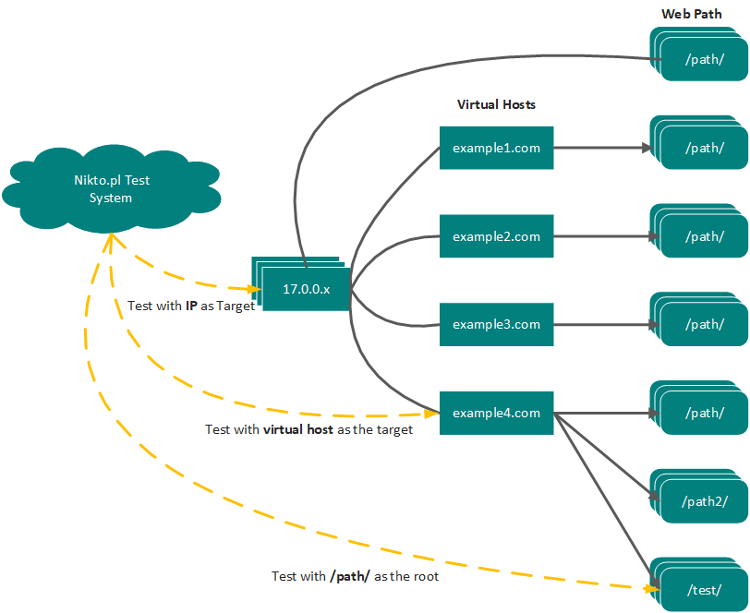
Take phpMyAdmin as an example. It is a common web-based tool for managing MySQL and MariaDB databases, and it is often interesting during a web server review because it is sensitive, frequently targeted, and sometimes left exposed or poorly maintained.
The application might be reachable in several different ways:
https://203.0.113.10/phpmyadmin/
https://example.com/phpmyadmin/
https://example.com/admin/phpmyadmin/
https://db.example.com/
Each of these targets may produce different Nikto results. A scan against the IP address may reach the default virtual host. A scan against example.com may test the main website and may only see a redirect. A scan against /phpmyadmin/ or /admin/phpmyadmin/ may test the application directly and may expose application-specific findings.
This does not mean running Nikto hundreds of times across every path and virtual host, but consideration should be taken as to where to target the scan most effectively. Similar considerations come into play when performing simple file / directory brute forcing using Burp Suite or other web application testing tools.
Starting a Nikto Web Scan
For a simple test we will scan a single hostname. In the example below we are testing the virtual host nikto-test.com over HTTPS. The web server on the target responds to the Nikto tests as it would any request to the web server.
test@ubuntu: ./nikto.pl -h https://www.nikto-test.com
- Nikto v2.6.0
---------------------------------------------------------------------------
+ Target IP:          203.0.113.10
+ Target Hostname:    nikto-test.com
+ Target Port:        443
---------------------------------------------------------------------------
+ SSL Info:           Subject:  /CN=example.com
                      CN:       nikto-test.com
                      SAN:      nikto-test.com
                      Ciphers:  TLS_AES_256_GCM_SHA384
                      Issuer:   /C=US/O=Google Trust Services/CN=WE1
+ Platform:           Unknown
+ Start Time:         2026-05-20 11:01:37 (GMT10)
---------------------------------------------------------------------------
+ Server: cloudflare
+ Multiple IPs found: 203.0.113.10, 203.0.113.20, 2001:db8::10, 2001:db8::20
+ [999986] /: Retrieved access-control-allow-origin header: *.
+ [000427] /: Link header(s) found with value(s): ; rel="preconnect". See: https://developer.mozilla.org/en-US/docs/Web/HTTP/Headers/Link
+ [011799] /: An alt-svc header was found which is advertising HTTP/3. The endpoint is: ':443'. Nikto cannot test HTTP/3 over QUIC. See: https://developer.mozilla.org/en-US/docs/Web/HTTP/Headers/alt-svc
+ [999106] /: Cloudflare detected via cf-ray header. Recommend proxying via Burp or mitmproxy to avoid TLS fingerprint blocks. See: https://github.com/sullo/nikto/wiki/Using-a-Proxy
+ No CGI Directories found (use '-C all' to force check all possible dirs). CGI tests skipped.
+ [999996] /robots.txt: contains 10 entries which should be manually viewed. See: https://developer.mozilla.org/en-US/docs/Glossary/Robots.txt
+ ERROR: *** Error limit (20) reached for host, giving up. Last error: opening stream: ssl connect failed. ***
+ ERROR: *** Consider using mitmproxy to avoid TLS fingerprinting. ***
- STATUS: Completed 115 requests (~2% complete, ~50.6 minutes left): currently in plugin 'Site Files'
- STATUS: Running average: Not enough data.
+ Scan terminated: 20 errors and 5 items reported on the remote host
+ End Time:           2026-05-20 11:02:24 (GMT10) (47 seconds)
---------------------------------------------------------------------------
+ 1 host(s) tested For comparison, a completed scan will usually show the total number of requests made and finish without the error-limit message. When reviewing Nikto output, always check whether the scan completed before interpreting the results.
Reading Nikto Output
Target IP / Hostname / Port:confirms what Nikto actually tested.SSL Info:shows certificate and TLS details for HTTPS targets.Server:identifies the web server or CDN header returned by the target.Finding IDs:the number in square brackets identifies the Nikto test or plugin result.Status / End Time:helps confirm whether the scan completed or stopped early.
Partial scans and error limits
The important lines are the error limit and completion status:
+ ERROR: *** Error limit (20) reached for host, giving up. Last error: opening stream: ssl connect failed. ***
- STATUS: Completed 115 requests (~2% complete, ~50.6 minutes left)
+ Scan terminated: 20 errors and 5 items reported on the remote host
This means Nikto started testing the host, but repeated SSL/TLS connection failures caused it to stop early. In this case, the scan should not be treated as a complete assessment. It only tested a small portion of the checks before terminating.
This can happen when a target is behind a CDN or WAF, when scanner-like traffic is rate limited, or when the TLS connection used by the scanner is blocked or fails repeatedly. Nikto also notes that Cloudflare was detected, which may affect how the target responds to automated scanning.
The findings that were reported are still worth reviewing, but missing findings do not mean the issues are absent. A partial scan only shows what Nikto was able to test before it stopped.
- Did the scan complete?
- Did it stop after reaching the error limit?
- Was the target behind a CDN or WAF?
- Did Nikto only test a small percentage of checks?
- Were HTTPS/TLS connection errors reported?

Saving Nikto Results
Nikto results can be saved for later review, comparison, or inclusion in a testing report.
nikto -h https://example.com -output nikto-example.txt
nikto -h https://example.com -Format json -output nikto-example.json
nikto -h https://example.com -Format xml -output nikto-example.xml
Text output is easiest for quick review. JSON and XML are more useful when results need to be processed, compared, or imported into another workflow.
Nikto and the Web Server Logs
When testing a site with Nikto, it is important to understand how much noise the scan creates. Nikto sends a large number of HTTP requests looking for known files, default paths, exposed scripts, legacy vulnerabilities, and common misconfigurations. Most of these requests will not exist on the target and will usually return a 404 Not Found response.
This makes Nikto easy to spot in web server logs. A scan can generate thousands of requests in a short period of time, often with unusual paths that would not normally be requested by a regular user.
Here is a sample from an Nginx access log while a site is being tested with Nikto.
203.0.113.25 - - [20/May/2026:11:14:08 +1000] "GET /admin/ HTTP/1.1" 404 153 "-" "Mozilla/5.00 (Nikto/2.6.0) (Evasions:None)"
203.0.113.25 - - [20/May/2026:11:14:09 +1000] "GET /backup/ HTTP/1.1" 404 153 "-" "Mozilla/5.00 (Nikto/2.6.0) (Evasions:None)"
203.0.113.25 - - [20/May/2026:11:14:10 +1000] "GET /phpinfo.php HTTP/1.1" 404 153 "-" "Mozilla/5.00 (Nikto/2.6.0) (Evasions:None)"
203.0.113.25 - - [20/May/2026:11:14:11 +1000] "GET /.git/config HTTP/1.1" 404 153 "-" "Mozilla/5.00 (Nikto/2.6.0) (Evasions:None)"
203.0.113.25 - - [20/May/2026:11:14:12 +1000] "GET /.env HTTP/1.1" 404 153 "-" "Mozilla/5.00 (Nikto/2.6.0) (Evasions:None)"
203.0.113.25 - - [20/May/2026:11:14:13 +1000] "GET /server-status HTTP/1.1" 404 153 "-" "Mozilla/5.00 (Nikto/2.6.0) (Evasions:None)"
203.0.113.25 - - [20/May/2026:11:14:14 +1000] "GET /wp-login.php HTTP/1.1" 404 153 "-" "Mozilla/5.00 (Nikto/2.6.0) (Evasions:None)"
203.0.113.25 - - [20/May/2026:11:14:15 +1000] "GET /robots.txt HTTP/1.1" 200 214 "-" "Mozilla/5.00 (Nikto/2.6.0) (Evasions:None)"
The repeated requests, unusual file names, and Nikto user agent make the scan obvious. In many environments this activity will also trigger WAF, CDN, SIEM, or web server alerts. This is expected behaviour for an active web scanner. In the access logs this can appear as 404 Not Found responses and repeated checks for old software, and requests that do not look like normal user browsing.
A Nikto user agent may also appear in the log entry, depending on the scan configuration and version:
Mozilla/5.00 (Nikto/2.6.0) (Evasions:None)Recent Nikto versions may randomise user agents, but the scan does not become invisible. The request pattern is still visible: many requests, unusual paths, and a high percentage of failed responses over a short period of time.
Common Nikto Errors and Fixes
If Nikto does not run cleanly the first time, the issue is usually a missing Perl module, an incorrect working directory, SSL/TLS support, or a target connection problem.
| Error | Possible Cause | Fix |
|---|---|---|
ERROR: Required module not found: JSON |
Missing Perl JSON module. | sudo apt install libjson-perl |
ERROR: Required module not found: XML::Writer |
Missing Perl XML writer module. | sudo apt install libxml-writer-perl |
SSL support not available or HTTPS scan fails immediately |
Missing Perl SSL support. | sudo apt install libnet-ssleay-perl openssl |
+ ERROR: No host (-host) specified |
Nikto started correctly, but no target was provided. | nikto -h https://example.com |
command not found: nikto |
Nikto is not installed globally, or the script is not in your PATH. |
Run it from the cloned directory: cd nikto/program && ./nikto.pl -h https://example.com |
Permission denied when running ./nikto.pl |
The script is not executable. | chmod +x nikto.pl then run ./nikto.pl |
ERROR: Cannot open nikto.conf or config-related errors |
Nikto is being run from the wrong directory, or the config file is missing. | Run Nikto from the program/ directory in the cloned repository. |
Scan stops with Error limit reached |
Repeated connection, TLS, timeout, CDN, WAF, or rate-limit failures. | Check whether the target is reachable, confirm HTTP/HTTPS and port, try a smaller test target, or scan through an approved proxy where appropriate. |
| Scan returns very few results | Wrong target selected, redirect-only site, default virtual host, CDN/WAF filtering, or path not tested directly. | Try the hostname, HTTPS version, correct port, and known application path such as https://example.com/app/. |
| HTTPS target behaves differently from HTTP | Different virtual host, redirect behaviour, TLS termination, CDN handling, or application routing. | Scan both schemes where appropriate: http://example.com and https://example.com. |
Taking Nikto Results Further
Nikto results often point to something worth a closer look. Each result maps to a tool or scanner that can give you more detail. If you haven't run a scan yet, start with the hosted Nikto scanner.
HTTP Headers Tool
Use this to verify what the server is returning directly. Useful when Nikto flags missing security headers, alt-svc, Server, X-Frame-Options, cookie issues, or CDN/WAF indicators.
SSL/TLS Scanner
Use this when Nikto reports certificate details, TLS errors, or HTTPS behaviour worth investigating further, particularly when there are differences between HTTP and HTTPS scan results.
Check SSL/TLSWhatWeb / Technology Detection
Use this when Nikto surfaces a server banner or version disclosure and you want to understand the full stack before going deeper. If Nikto identifies a specific CMS, use the dedicated WordPress, Joomla, or Drupal scanner instead.
Detect Web TechnologiesNmap Port Scanner
Use this when the Nikto target is a single web service and you want to know what else is exposed on the same host. Useful for pivoting from a web finding to a broader view of the attack surface.
Scan Open PortsConclusion
Nikto is straightforward to run but requires some thought about where to point it. A scan against the wrong target, or one that terminates early, can give a false sense of coverage. Used correctly, after recon, against the right host and path, with the output verified and followed up, it remains one of the most practical first steps in a web server review.
Next Level Your Technical Network Intelligence
Use Cases and More Info-
13 Vulnerability Scanners -
17 Free DNS & Network Tools -
4+ Billion Records of DNS / IP data